
Download JShot – Free Multi‑Platform Screen Capture Tool
Overview
JShot is a free, cross‑platform screen capture utility that aims to simplify the whole workflow from taking a screenshot to sharing it online. Whether you’re working on Windows, macOS, Linux, Android, or iOS, JShot provides a consistent set of tools for capturing rectangular regions, full‑screen images, or the current clipboard content. Once a screenshot is taken, you can immediately annotate it with text, arrows, or simple shapes and then push the file to a variety of destinations—FTP servers, ImageShack, Skype, Twitter, Picasa, or any custom uploader you add via plugins.
While the Windows version offers extra options such as capturing active windows, taskbars, and desktop widgets, the macOS build is slightly more modest, lacking some of those specific capture modes. Nonetheless, the core experience remains robust: a lightweight, secure, and instantly shareable solution that does not require a paid license. JShot also keeps a history of your captures, making it easy to revisit older screenshots without digging through your file system.
For users who need quick visual communication—developers documenting bugs, educators creating tutorials, or remote teams sharing UI feedback—JShot presents an attractive blend of flexibility and simplicity.
Key Features and Compatibility
- Multi‑platform support: Windows, macOS, Linux, Android, iOS.
- Capture modes: rectangular area, full screen, clipboard content, active window (Windows only).
- Built‑in annotation tools: text, arrows, highlight boxes, simple shapes.
- Instant sharing: FTP, ImageShack, Skype, Twitter, Picasa, plus custom plugin uploaders.
- Screenshot history: view and reuse recent captures.
- Plugin architecture: extend upload destinations or add new post‑processing steps.
- Lightweight footprint: runs on modest hardware, no background services.
- Free for personal and commercial use.
Operating System Support
JShot’s developers have packaged native binaries for the most common desktop and mobile operating systems. On Windows, the installer integrates with the system tray and provides hot‑key shortcuts for rapid capture. macOS users receive a signed .dmg that works on both Intel and Apple Silicon Macs, though the ability to capture taskbars and widgets is currently unavailable. Linux distributions can install JShot via a .deb or .rpm package, and the application respects the desktop environment’s theming. Mobile versions for Android and iOS are distributed through their respective app stores, offering touch‑friendly capture and annotation tools. Because JShot is built with Java and leverages platform‑specific libraries only where needed, updates are rolled out uniformly across all platforms, ensuring a secure and consistent experience.
Installation, Setup, and Everyday Use
Getting started with JShot is straightforward. Download the installer matching your operating system from the official website. For Windows, run the .exe file and follow the wizard; the program will automatically add a shortcut to the Start menu and place an icon in the system tray. macOS users drag the JShot.app into the Applications folder, then grant the necessary screen‑recording permissions in System Settings → Security & Privacy. Linux users can install the .deb package with sudo dpkg -i jshot.deb or the .rpm with sudo rpm -ivh jshot.rpm. Mobile users simply tap “Install” from the Play Store or App Store, and the app will request permission to capture the screen.
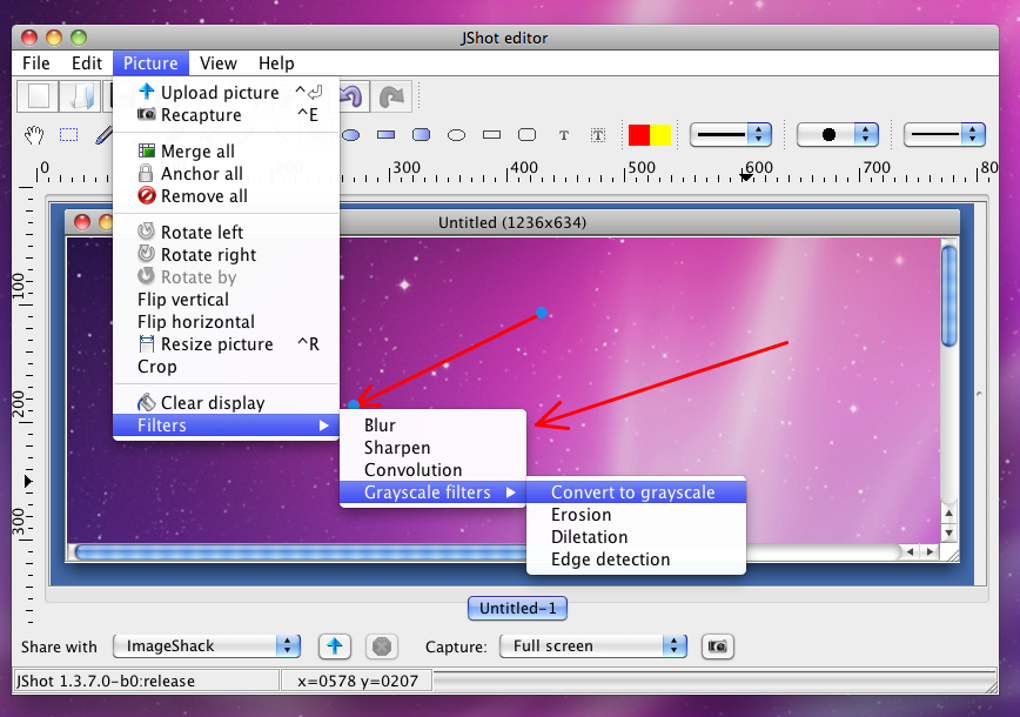
Once installed, launch JShot and familiarize yourself with the main window. The toolbar displays three primary capture buttons: “Region,” “Full Screen,” and “Clipboard.” Select “Region” to draw a rectangle over the area you want to capture; you can also press the default hot‑key (Ctrl + Shift + S on Windows, Cmd + Shift + S on macOS) to invoke this mode instantly. After the screenshot appears in the editor, use the annotation panel on the right to add text labels, arrows, or highlight boxes.
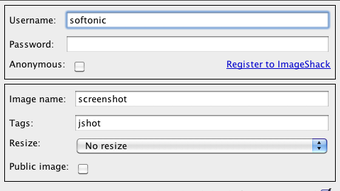
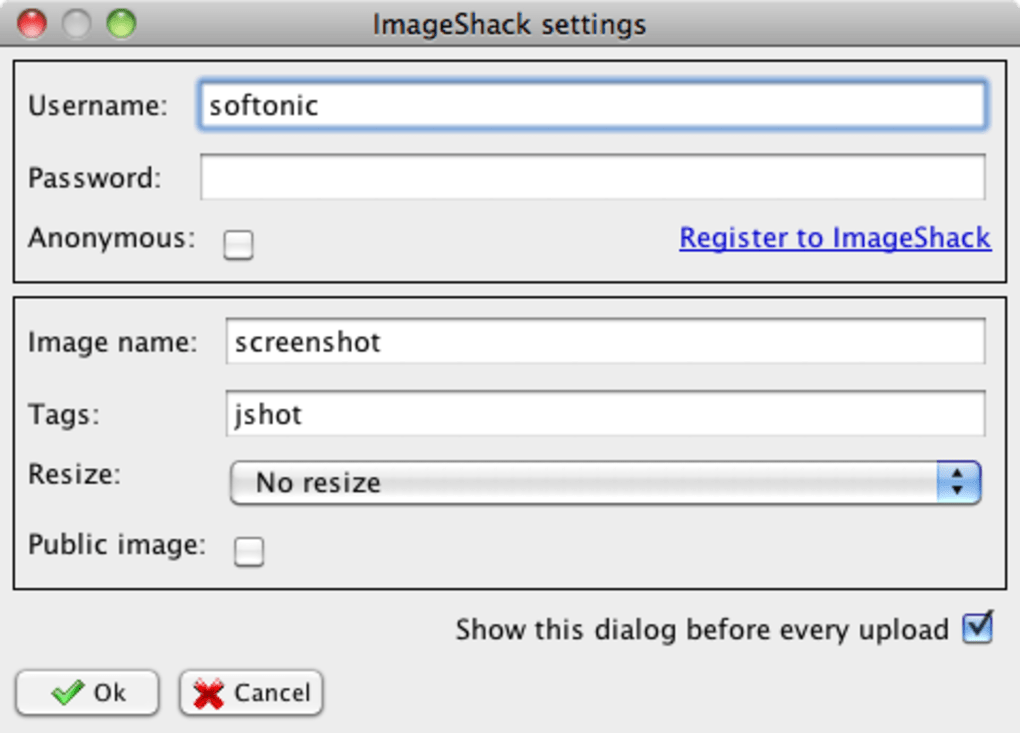
Each annotation can be resized, recolored, or removed with a single click. When you’re satisfied, click the “Share” button. A pop‑up menu lists the built‑in uploaders—FTP, ImageShack, Skype, Twitter, Picasa—and any third‑party plugins you have installed in the /home/youruser/.jshot/plugins/uploaders directory (or the equivalent on Windows).
Choose a destination, fill in any required credentials, and JShot will upload the image automatically, copying the public URL to your clipboard for immediate pasting into chats or documents.
For power users, JShot’s plugin system opens the door to custom workflows. To add a new uploader, download the plugin package from the developer’s site, unzip it, and place the resulting folder into the plugins directory mentioned above. Restart JShot, and the new uploader will appear in the share menu.
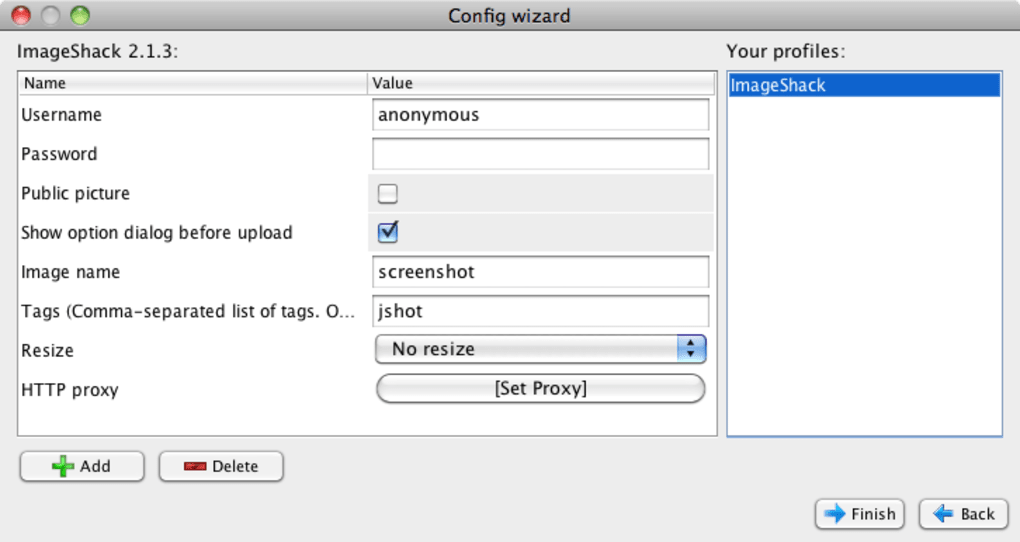
This extensibility makes it possible to integrate with cloud storage services like Google Drive, Dropbox, or even proprietary corporate servers without waiting for an official update. The application also offers a “Preferences” dialog where you can configure default save locations, hot‑key bindings, and the maximum number of screenshots kept in the history. Because JShot is free and open‑source, the community frequently contributes bug fixes and feature enhancements, which are delivered through the automatic update checker that notifies you when a newer version is available.
Pros, Cons, and Frequently Asked Questions
Pros
- Completely free for both personal and commercial use.
- Works on all major desktop and mobile platforms.
- Fast, lightweight, and does not consume significant RAM.
- Built‑in annotation tools cover most everyday needs.
- Instant sharing to a wide range of services.
- Plugin architecture allows custom upload destinations.
- Screenshot history saves time when revisiting recent captures.
Cons
- Mac version lacks active‑window and widget capture modes.
- No built‑in screencast (video) recording capability.
- Custom shape cropping is not supported.
- Plugin installation requires manual file placement, which may be confusing for beginners.
- Advanced image editing (filters, blur, pixelate) is missing.
FAQ
Is JShot really free, or are there hidden fees?
JShot is 100 % free for both personal and commercial use. There are no hidden subscription fees, and all core features are available without a license key.
Can I use JShot to capture video or create screencasts?
No. JShot focuses on still screenshots. If you need video capture, consider a dedicated screencasting tool like Snagit or OBS Studio.
How do I add a new upload service that isn’t listed by default?
Download the desired uploader plugin from the JShot website, extract it, and copy the folder into the .jshot/plugins/uploaders directory (or the equivalent on Windows). Restart the application, and the new service will appear in the Share menu.
Is JShot safe to install on corporate machines?
Yes. JShot is an open‑source project with transparent code, and the installers are digitally signed for Windows and macOS. It does not run background processes or collect telemetry.
What is the best way to keep JShot up to date?
JShot includes an automatic update checker that notifies you when a newer version is released. You can also visit the official download page periodically to download the latest installer.
Conclusion & Call to Action
For anyone seeking a reliable, free, and cross‑platform screenshot solution, JShot hits the sweet spot. Its core capture and annotation capabilities cover the majority of everyday tasks, while the built‑in sharing options and extensible plugin system keep power users happy. Although the macOS build lacks a few advanced capture modes and the application does not support video recording, those are minor trade‑offs compared with the overall value. If you need a quick way to grab a screen region, add a note, and instantly push it to Slack, Twitter, or an FTP server, JShot delivers with minimal fuss. Download JShot today, give it a spin, and see how much faster your visual communication can become.







